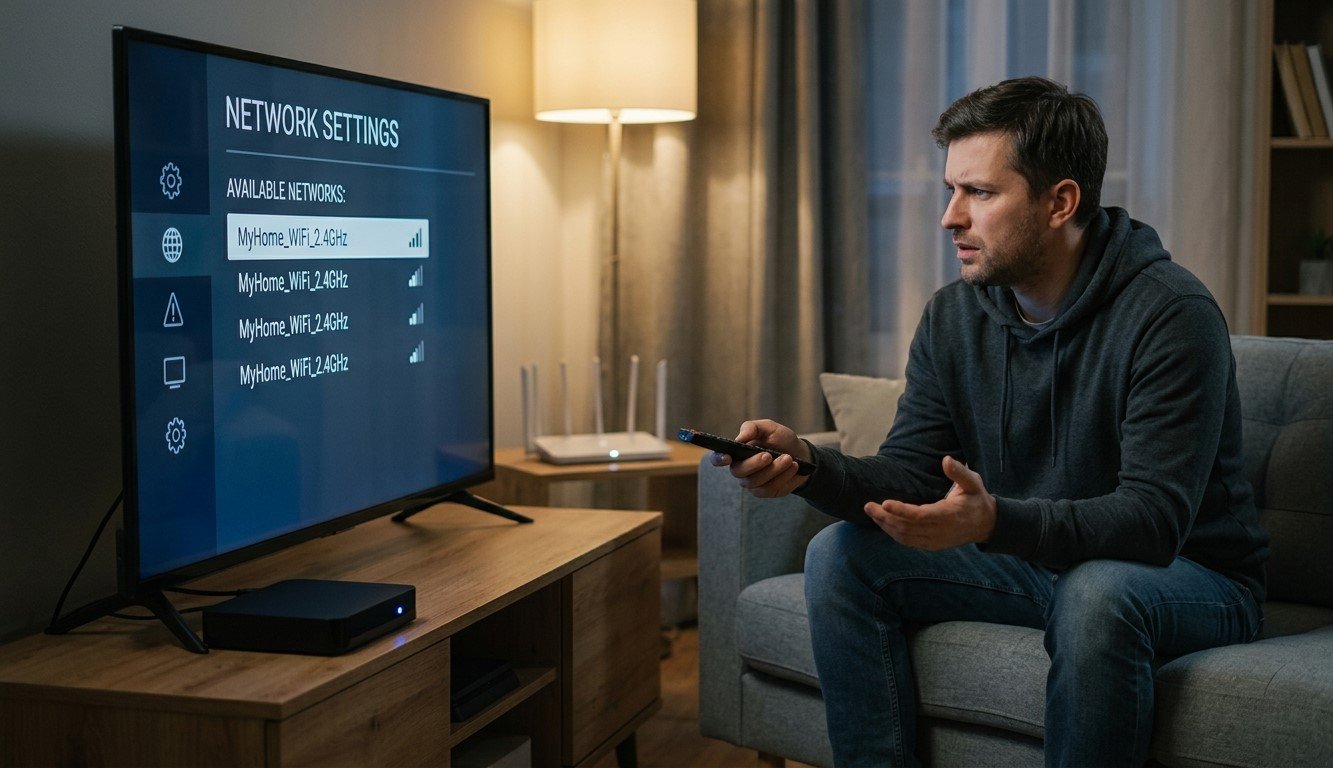
You can see your 5 GHz network on your phone, but your streaming box only lists the 2.4 GHz one, or doesn’t list your network at all. This is common, and the cause is usually one of a few simple things: the box can’t use 5 GHz, the router is hiding or restricting that band, or a channel or security setting is incompatible. In this guide, we’ll show you how to find out which, and how to fix it for IPTV India on your Indian IPTV Box.
Table of Contents
- Why 5 GHz Matters for Streaming
- Cause 1: Your Box Doesn’t Support 5 GHz
- Cause 2: A Combined Network Name
- Cause 3: The 5 GHz Band Is Off or Hidden
- Cause 4: Channel and DFS Issues
- Cause 5: Wi-Fi Mode, Width, or Security Settings
- Cause 6: Range and Signal
- Step-by-Step Fixes
- If 5 GHz Still Won’t Work
- FAQs
Why 5 GHz Matters for Streaming
Wi-Fi uses two main bands. The 2.4 GHz band reaches farther and passes through walls better, but it’s slower and crowded with interference from neighbors, microwaves, and Bluetooth devices. The 5 GHz band is typically faster and less congested, but its range is shorter.
For live IPTV, 5 GHz can mean steadier streaming, especially in apartments and busy households. But it’s not essential. Many boxes stream HD fine on a good 2.4 GHz connection, and Ethernet beats both.
Cause 1: Your Box Doesn’t Support 5 GHz
Some budget or older streaming boxes only have a 2.4 GHz Wi-Fi chip. If so, your box will never show a 5 GHz network, no matter what you change on the router.
To check, look at the box’s specifications, manual, or the seller’s page for terms like “dual-band,” “5 GHz,” or “802.11ac.” If it only lists 802.11b/g/n and 2.4 GHz, that’s your answer. Your options are using 2.4 GHz, connecting by Ethernet, or upgrading the box.
Cause 2: A Combined Network Name
Many routers broadcast both bands under one name, using a feature often called band steering or smart connect. Your phone and box then see a single network and the router decides which band to assign. That means the box may be connected to 5 GHz already, with no separate 5 GHz name to find.
If you want to choose the band yourself, look in your router settings for an option to separate the bands, then give them different names, such as “Home” and “Home-5G.” Some routers don’t allow separating them, so check your model’s options.
Cause 3: The 5 GHz Band Is Off or Hidden
Check the router’s admin page or app:
- The 5 GHz radio might be disabled, sometimes by accident or after a reset
- The network might be hidden, with the name not broadcast. If so, you’d need to add it manually by typing the exact name and security details
- A schedule or guest setting might be limiting it
- A mesh system might handle bands differently, or place 5 GHz only on certain nodes
Confirm that your phone can see and connect to the 5 GHz network. If other devices can’t see it either, the router side is the problem.
Cause 4: Channel and DFS Issues
This is a common cause when your phone sees 5 GHz but your box doesn’t.
The 5 GHz band has many channels, and some are DFS channels, which must yield to weather and military radar. In the US, these are generally channels 52 to 144, while channels 36 to 48 and 149 to 165 are non-DFS. Channel availability varies by country and router, so check what yours offers.
Some streaming boxes don’t support DFS channels at all, and others scan them slowly. If your router is set to Auto and picked a DFS channel, the box may not see the network, or it may disappear when the router switches channels after detecting radar.
Fixing it: set the router’s 5 GHz channel manually to a non-DFS channel, such as 36, 40, 44, 48, or one of the 149 to 165 range, depending on your region.
Cause 5: Wi-Fi Mode, Width, or Security Settings
Settings that are too new or too strict can lock out older devices:
- Wi-Fi mode: If the router’s 5 GHz band is set to a mode like “Wi-Fi 6 only” or “ax only,” older boxes won’t connect. Use a mixed mode that includes older standards
- Channel width: Very wide channels, such as 160 MHz, aren’t supported by many streaming boxes. Try 80 MHz or 40 MHz
- Security: If the network uses WPA3 only, devices without WPA3 support can’t join. Use WPA2/WPA3 mixed mode or WPA2 (AES) for compatibility
- Legacy settings: Avoid outdated options like WEP or TKIP, which can cause problems
- Region or country setting: If the box’s Wi-Fi region setting differs from your router’s, the box may not scan the channels your router uses. Check both
Cause 6: Range and Signal
5 GHz has shorter range. If your box is far from the router or behind thick walls, the 5 GHz signal may be too weak to appear in the list, even though 2.4 GHz still shows. Try moving the box or router closer as a test. If 5 GHz appears at close range, you’ve found the limit.
Step-by-Step Fixes
- Check your box’s specifications to confirm it supports 5 GHz
- Restart your router and your box
- Confirm your phone sees the 5 GHz network, standing near the router
- Check that 5 GHz is on in the router settings, and not hidden
- Separate the bands with different names, if your router allows
- Set the 5 GHz channel manually to a non-DFS channel
- Lower the channel width to 80 MHz or 40 MHz
- Use a mixed Wi-Fi mode and WPA2/WPA3 mixed or WPA2 security
- Check the country or region setting on both the router and the box
- Move the box closer for a test
- Update the firmware on your router and your box
- Rescan for networks, or forget and re-add the network on the box
- Add a hidden network manually, if you’ve chosen to hide it
- Change one setting at a time, so you know which one worked
If 5 GHz Still Won’t Work
You still have good options:
- Use 2.4 GHz. For a single HD stream, it’s often enough, especially if the signal is strong and interference is low
- Use Ethernet. A wired connection avoids all of this and is usually the most stable choice for live streaming
- Try a powerline adapter or MoCA if running a cable isn’t practical
- Add a mesh node or access point closer to the TV, preferably with a wired link
- Upgrade the box if it’s old and lacks 5 GHz
If you aren’t sure whether the problem is your box or your router, test another 5 GHz-capable device nearby, and note what it does.
FAQs
1. Why can my phone see 5 GHz but my box can’t?
Your box may be 2.4 GHz only, may not support the router’s channel (often a DFS channel), or may be incompatible with the Wi-Fi mode, channel width, or security setting.
2. Is 5 GHz always better for IPTV?
Not always. It’s faster and less congested, but has shorter range. A strong 2.4 GHz signal can stream HD fine, and Ethernet is usually best.
3. Does a combined network name mean I’m stuck on 2.4 GHz?
Not necessarily. The router may already place your box on 5 GHz. Check the box’s connection details, or separate the band names in the router settings.
4. What channel should I use for 5 GHz?
In the US, channels 36 to 48 and 149 to 165 are generally non-DFS and widely compatible. Available channels vary by region and router.
5. Should I upgrade my Indian IPTV Box just for 5 GHz?
Only if your connection is unstable. Try Ethernet or a strong 2.4 GHz signal first, and consider upgrading if the box is old and struggling in other ways too.
Find the Connection That Works Best
A missing 5 GHz network is almost always a compatibility or settings issue, and most cases have an easy fix or a good workaround. Pair a dependable IPTV India subscription with a well-connected Indian IPTV Box, whether it’s on 5 GHz, 2.4 GHz, or Ethernet. Explore our IPTV plans today and keep your streaming running smoothly.